
Projects that move
every module.
Plan in a list, a board or a Gantt. Each step opens the ticket, request, quote or contract in the module that owns it, and finishes when that record does.
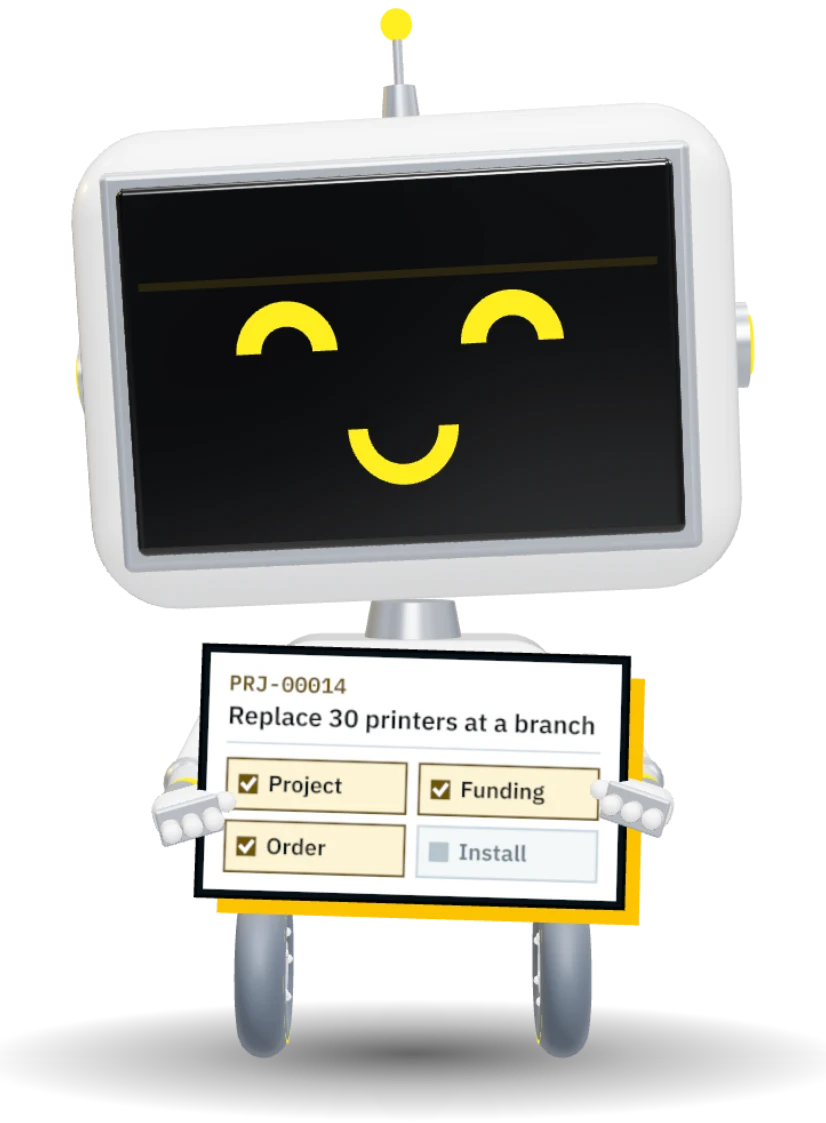
 PRJ-00014 · Replace 30 printers at a branchShare
Each step raises its record in the module that owns it.
Done means the order was placed, not that someone ticked a box.
The hold-up in the owning module's own words.
How a project runs.
Starts from the site device refresh template
60 min savedApproves the funding with the budget beside it
30 min savedOpens the request from the step, already filled in
45 min savedGets the install ticket the delivery offered
50 min savedSees why a step waits, without asking
40 min savedA step opens the form that does the work.
Pick the kind when you add the step. Its one door opens the module's own form inside the step, filled from the project, and the saved record becomes the step's.
The desk's own request form, with the step's words already in it.
The guided purchase request, with the estimate's lines or the winning quote's.
The request for quote, with the lines to price and the step's scope.
The contract form, with the supplier, the dates and the value.
The registry form, with the chosen supplier and the sponsor as owner.
The component form, with the name, the kind and the site.
The plan reads the records.
So it cannot drift.
A step that orders printers is done when the order is placed. When the delivery arrives, the next step is offered the install ticket with the units on it. Nobody updates the plan by hand.

One plan, five ways to see it.
Group, filter and save a view by name. Phases are yours to add, rename, reorder and delete, and the steps in them move along.
Grouped by phase, person, status or priority, with the columns you choose.
A column per status, with lanes by phase or person if you want them.
Every step and its fields in one sheet.
Dependencies, the critical path and the baseline beside the forecast.
What is due, a month at a time; drag a step to move its date.
A filter and a layout kept by name, for you or for the team.
Your stages, your gates.
Every install starts with four stages: Asked for, Active, On hold and Closed. Add your own in Projects setup and mark the gates, where the exit checks are confirmed and an approver decides before the project moves on.
Questions and an estimate
CAPEX and budget
Security, legal, CAB
Requests, quotes and orders
Negotiate and sign
Receive, tag, install
Training and the portal
Criteria and approver
An example lifecycle with three gates. Spend is followed throughout: estimated, funded, committed, invoiced and paid, in your own currency.
Ten templates, ready to run.
Installed from Projects setup. Each carries its phases, steps and playbooks; edit any of them, or copy one to make your own.
Old laptops out, new ones in, data moved and the old kit disposed of with a certificate.
Switches and access points ordered, staged and swapped in a change window.
The new app approved and live, the old one sunset and its notice served.
Owners, reviews, SSO, training and the portal entry, in order.
A new site from lease to first ticket: network, desks, devices and accounts.
Assets returned, services cancelled, the site closed with a successor.
Workloads mapped, moved in waves and the racks emptied.
Requirements, scored answers and a three-year cost, decided on the RFQ.
Printers, phones and other devices at one site, one checklist per unit.
Start empty and add the steps the work needs.
Questions about project management.
Is it a separate project tool?
Does it copy data from other modules?
Will it order things on its own?
Can it run a group of projects?
Everything project management does
Built on the Service Desk and the modules you already run, so a project never keeps a second copy of anything.
- 20
- capabilities on this page
- Unlimited users, no per-seat fee
- One record shared with every other module
- 01Steps that open the real form
A ticket step opens the desk's own request form; purchase, quote, contract, application and infrastructure steps open theirs, inside the step.
- 02Steps that watch
A step is done because its record is: the order placed, the contract signed, the ticket closed.
- 03One step hands on to the next
An awarded quote offers the purchase, a received order the install ticket, a signed contract its notice step.
- 04List, board, table, Gantt, calendar
Five views of one plan, with filters and saved views, yours or shared with the team.
- 05Phases you arrange
Add, rename, reorder and delete phases; the steps in them move along.
- 06Why it is stuck
Quotes not back, an order past its promised date, a short delivery or a supplier not set up, on the plan.
- 07Funding first
An estimate, a CAPEX check and a funding approval before any request, quote or contract starts.
- 08An agent on your terms
It chases late steps, moves dates and links records, as a draft for a planner or on its own. It never spends money.
- 09Chat and Teams
Channels on every project, mirrored to Microsoft Teams, with health changes posted as they happen.
- 10Whiteboards and docs
A whiteboard for the plan on the wall, and every file on the project and its steps in one place.
- 11Team work in team queues
Provisioning, shipping and site visits land on the desk that does them, shown with that desk as the assignee.
- 12Devices per unit
Buy, receive, tag and retire devices, with a checklist per printer, laptop or switch.
- 13Vendors in the room
Requirements, progress, weekly updates and access requests from the supplier, on the project.
- 14Risks, issues and requirements
A risk and issue log, and requirements the vendor answers and your team accepts.
- 15Dependencies and forecast
Dependencies drawn on the Gantt, a critical path, and a forecast that moves with the work.
- 16Workload and time
Who has capacity, and a timer on each step logged against its estimate and your labor rates.
- 17Ask for a project
Anyone asks from the portal; triage scores the request and accepts it into the plan.
- 18Import a plan
Bring a plan from ClickUp, Microsoft Project, Smartsheet or a spreadsheet as a CSV.
- 19On your phone
Your steps, the plan, the chat and each step's door in the ATLAS app.
- 20Sign-off, goals and lessons
A named approver signs off, projects roll up to goals, and lessons are kept for the next one.
Walkthrough · your process PNMCLOShareSee project management on your own project.
Tell us the project that keeps slipping. We will show you how it runs on one record.